NOWA
How to add and configure a sensor
NOWA 4S / 4Se control panel
This procedure explains how to add and configure a NOWA 2nd generation sensor to a NOWA 4S or NOWA 4Se control panel using the NOWA PRESENCE mobile app.
Before you start
Make sure you have:
- Access to the NOWA PRESENCE mobile app.
- A valid NOWA PRESENCE account with access to the system.
- The NOWA 4S / 4Se control panel already added to the account.
- The control panel connected to the Internet.
- The sensor you want to add.
- A small flathead screwdriver.
Important: Testing a water-leak sensor should trigger an alarm and close the NOWA valve. Before testing, make sure closing the water will not create an issue for the customer or building.
1 | Open the sensor |
- Open the sensor by gently lifting the cover with a small flathead screwdriver.
- Use one of the leverage points on the side of the sensor cover.
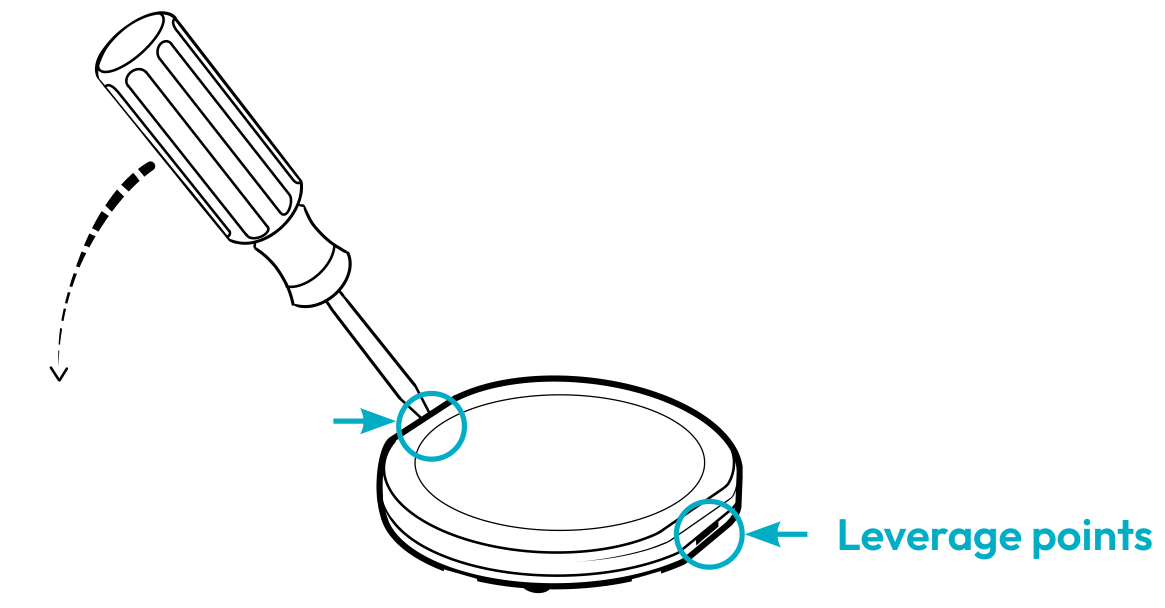
Open the sensor cover using a small flathead screwdriver.
2 | Prepare the sensor |
- If the sensor is new, remove the plastic pull tab from the battery compartment.
- Make sure the battery is installed with the positive side (+) facing up.
- Keep the sensor cover open for now. You may need access to the SW1 button during configuration or testing.
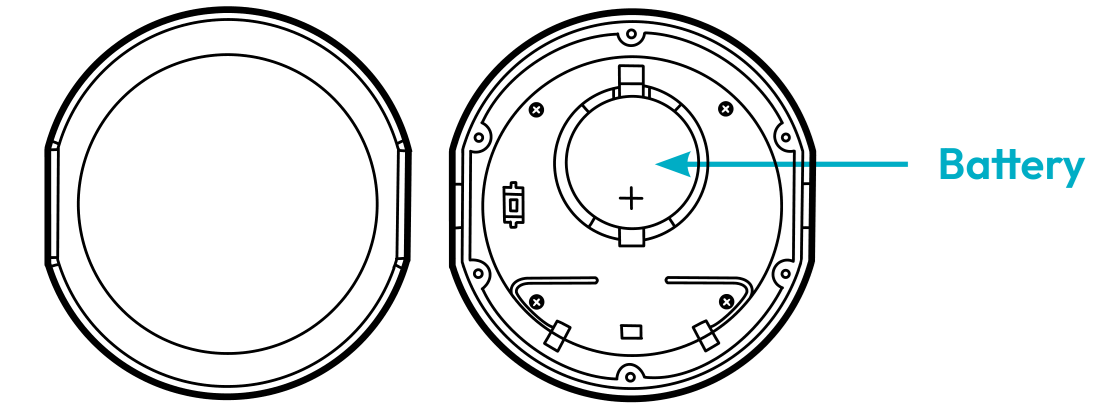
Verify that the battery is properly installed.
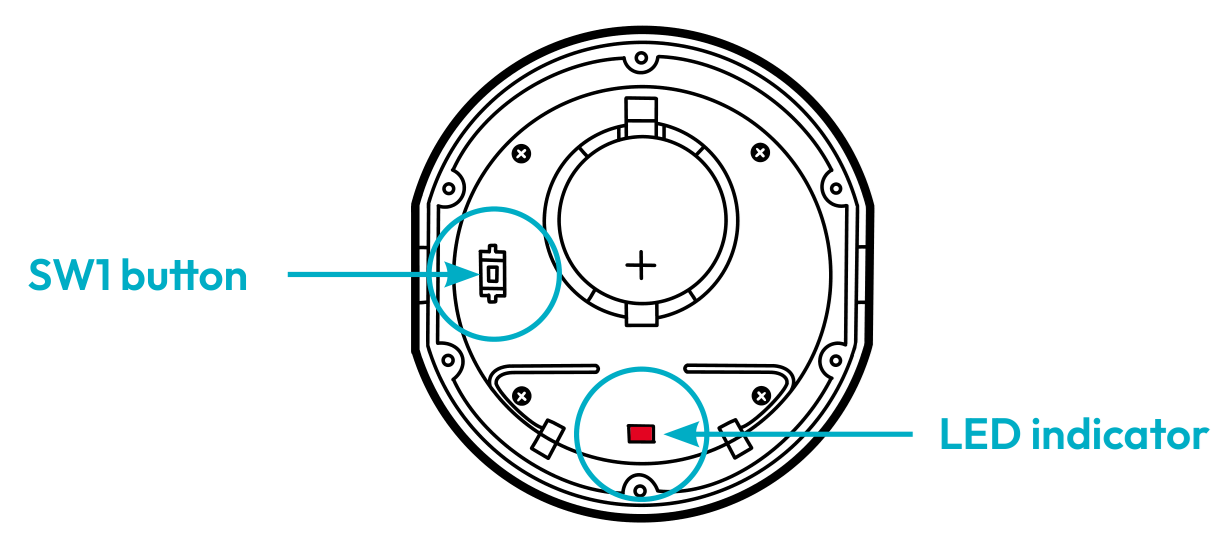
Locate the SW1 button and LED indicator inside the sensor.
3 | Open the sensor menu in the app |
- Open the NOWA PRESENCE app.
- Select the system from the home screen.
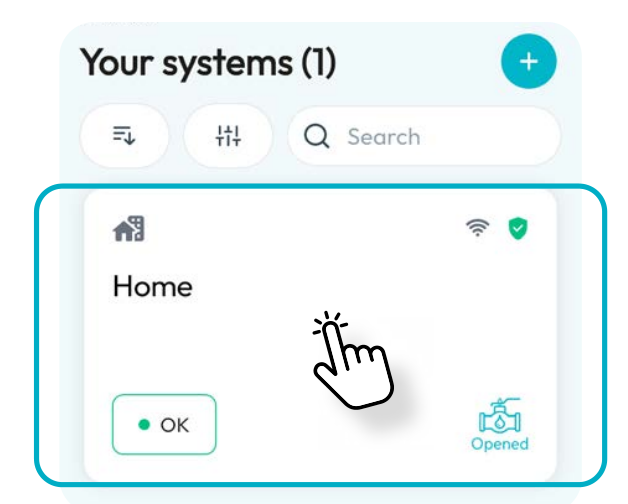
- On the dashboard, tap the blue circle with the three dots at the top right.
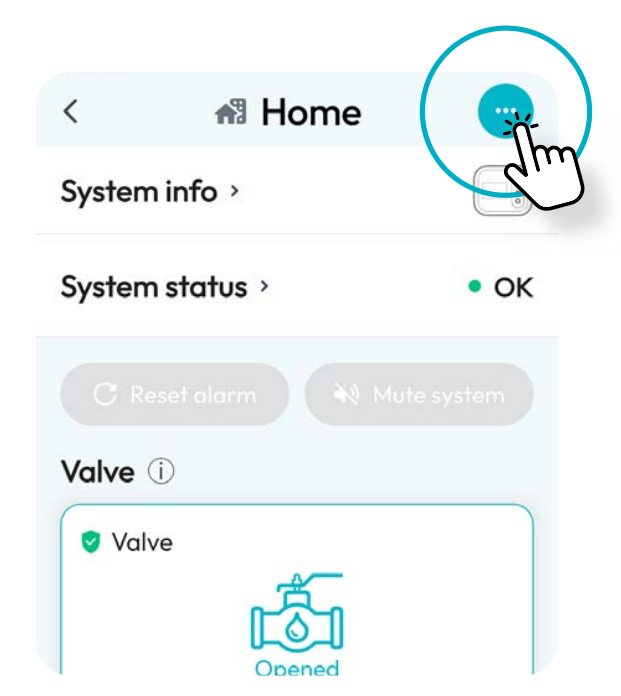
- Select the Sensors tab.
- Tap the + button at the top right.
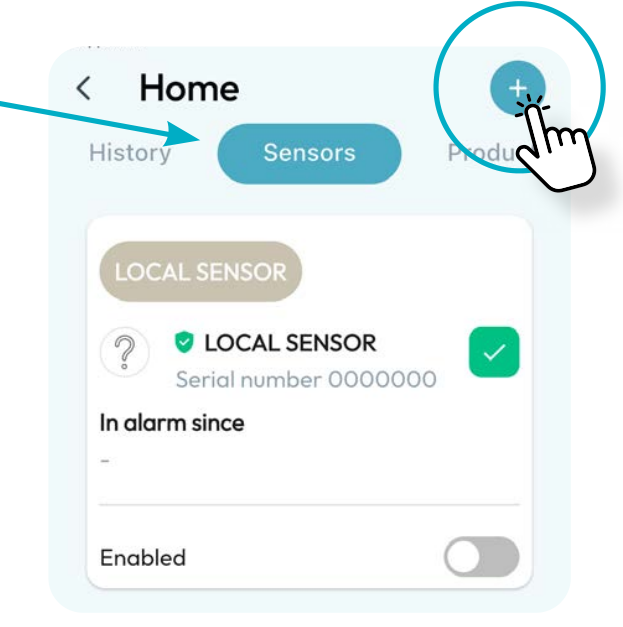
4 | Add the sensor ID |
You can add the sensor using either Scan ID or Learn mode.
Option A — Scan ID
- Tap Scan ID.
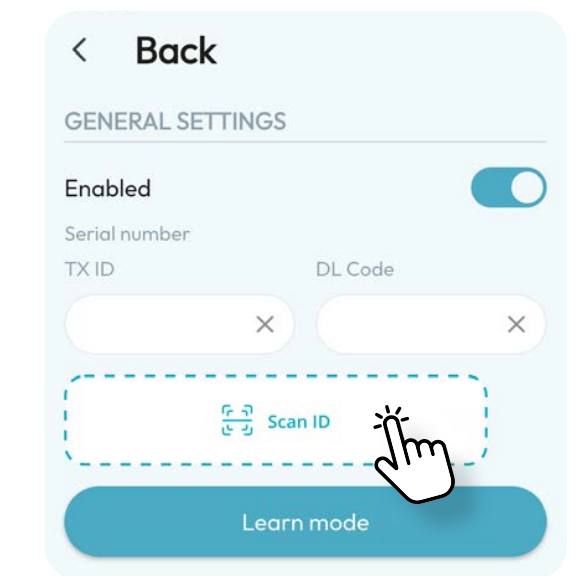
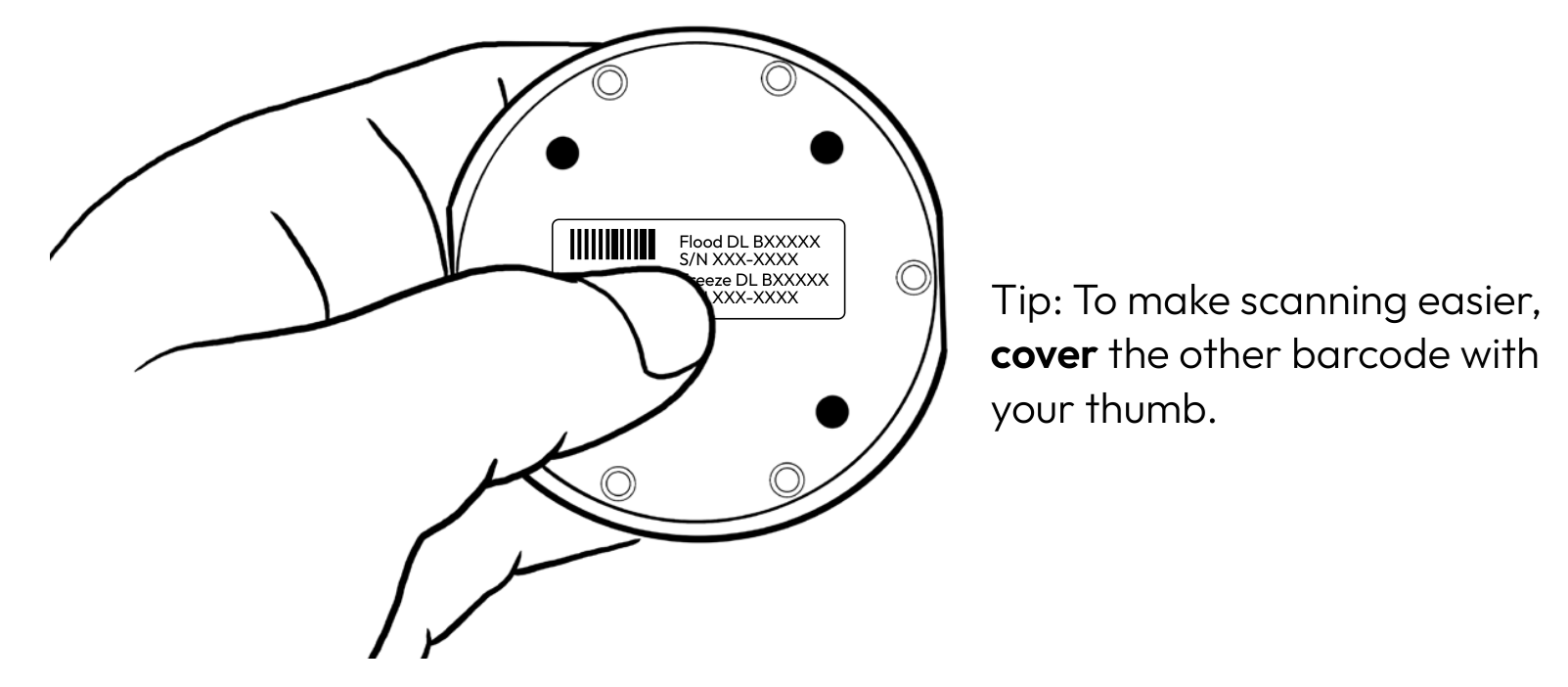
- Scan one of the two barcodes on the back of the sensor:
- Scan the barcode labelled Flood to add the sensor in water-leak detection mode.
- Scan the barcode labelled Freeze to add the sensor in freeze detection mode.
Tip: To make scanning easier, cover the other barcode with your thumb.
Option B — Learn mode
- Tap Learn mode.
- A 60-second countdown will appear.
- On the sensor, press and hold the SW1button:
- For water-leak detection mode, release the button when the red LED flashes once.
- For freeze detection mode, release the button when the red LED flashes twice.
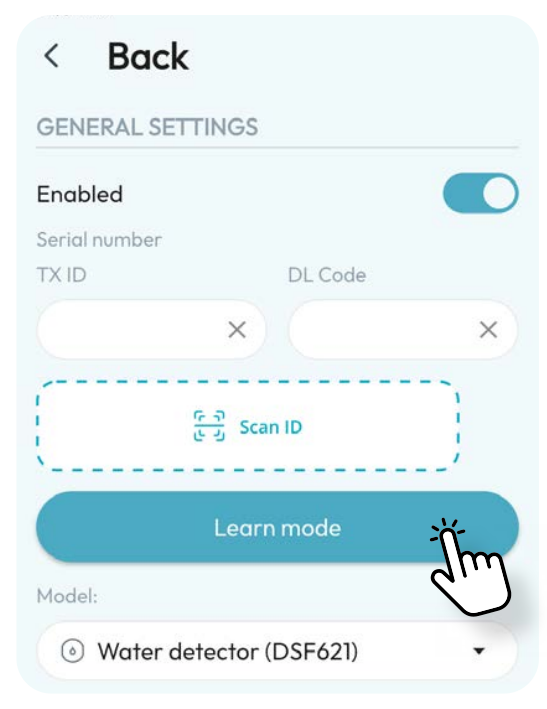
Note: If you make a mistake while adding the sensor serial number, tap Learn mode again and restart the procedure.
5 | Enter the sensor information |
- Choose the sensor model:
- Water detector (DSF621) for water-leak detection.
- Freeze detector (DSF621) for freeze detection.
- Select the most appropriate sensor location.
- If the location is not listed, select Other.
- Enter a clear sensor name to identify the sensor more precisely.
- Tap Save all at the bottom of the page to complete the sensor setup.

Naming example: Instead of naming the sensor only “Toilet”, use a more precise name such as “#3 Toilet — Powder Room”.
Important notes:
- If a sensor has already been added for one function, such as water leak or freeze, it cannot be added a second time for the same function.
- The same physical sensor can be added again as a new sensor for the other function.
- It is recommended to write a number or identifier under each sensor so it can be easily recognized if it is moved during cleaning or maintenance.
6 | Test the sensor |
Once the sensor has been added and configured, test it before leaving it in place.
Water-leak sensor test
- Bring the sensor to the location it will protect.
- Touch two adjacent gold contacts under the sensor with two wet fingers.
- The control panel should receive an alarm signal.
- The main water valve should close.
- A green shield should appear in the top-right corner of the tested sensor in the NOWA PRESENCE app.

Freeze sensor test
- Bring the sensor to the location it will protect.
- Press and hold the SW1 button until the red LED flashes twice, then release.
- The control panel should receive the signal.
- A green shield should appear in the top-right corner of the tested sensor in the NOWA PRESENCE app.
Confirm the test result
For the test to be successful, confirm that:
- The control panel shows the sensor location.
- The main water valve closes during a water-leak alarm test.
- Water is fully shut off when a tap is opened after the valve closes.
- Alarm notifications are received in the NOWA PRESENCE app.
- A green shield appears on the tested sensor in the app.
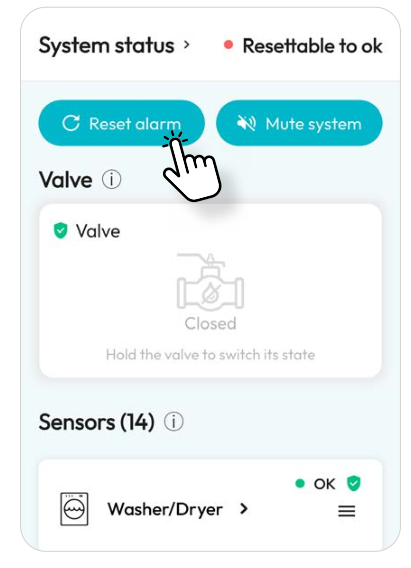
7 | Reset the alarm and reopen the valve |
- After testing, dry the sensor contacts and the surface where the sensor was tested.
- In the NOWA PRESENCE app, tap Reset alarm.
- Open the valve from the app or from the control panel.
- Confirm that water flows normally when a tap is opened.
- Close the sensor cover if it is still open.
8 | Place the sensor |
- Identify the lowest point where water is most likely to collect.
- Place the sensor on the floor in that area.
- Make sure all feet under the sensor touch the floor.
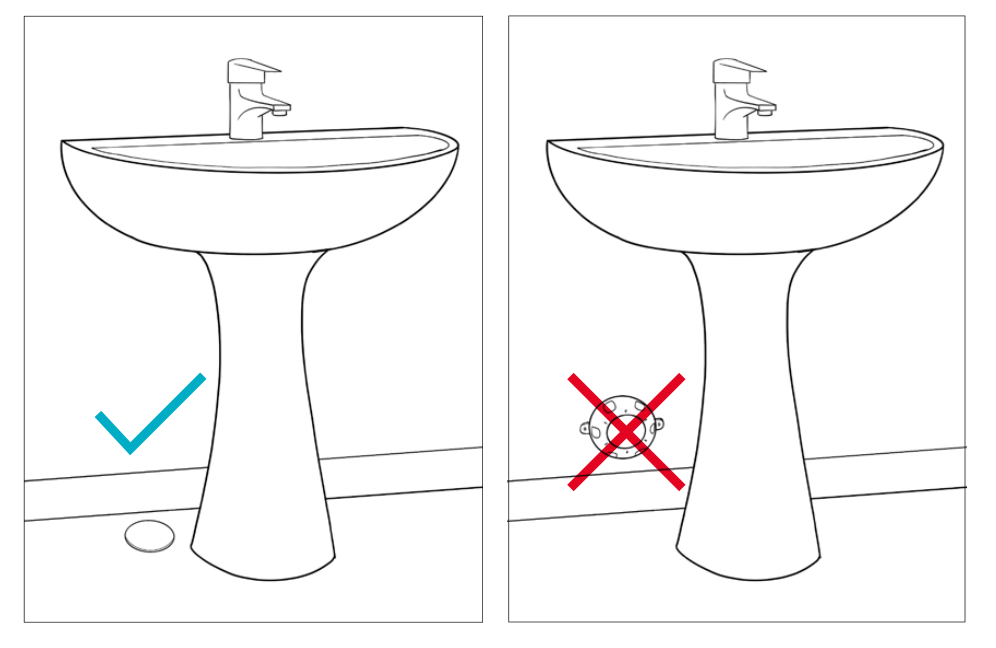
Tip: A marble can be used to help identify where water would naturally accumulate on the floor.
Troubleshooting
The barcode will not scan
- Make sure there is enough light.
- Clean the barcode if needed.
- Cover the other barcode with your thumb.
- Use the Learn mode method instead.
The sensor is not added in Learn mode
- Restart the Learn mode procedure and try again within the 60-second countdown.
- Verify that the battery is installed with the positive side (+) facing up.
- Move closer to the control panel and try again.
- Verify that the control panel is connected to the Internet.
The water-leak test does not trigger an alarm
- Make sure your fingers are wet.
- Touch two adjacent gold contacts under the sensor at the same time.
- Verify that the sensor was saved correctly in the NOWA PRESENCE app.
- Verify that the battery is installed correctly.
The alarm cannot be reset
- Dry the sensor contacts completely.
- Dry the surface where the sensor was tested or installed.
- Verify that no other sensor is still detecting water.
- Once no water is detected, reset the alarm and reopen the valve.
Need assistance?
If the sensor cannot be added or tested after verifying the steps above, contact NOWA Technical Support.
| Email: | support@nowa4S.com |
| Phone: | 1-877-287-7777 |
| Online support: | www.nowasupport.com |
Was this article helpful?
That’s Great!
Thank you for your feedback
Sorry! We couldn't be helpful
Thank you for your feedback
Feedback sent
We appreciate your effort and will try to fix the article