This procedure explains how to connect a NOWA 4S or NOWA 4Se control panel to a Wi-Fi network using the NOWA PRESENCE mobile app.
Video tutorial
You can also watch the video tutorial showing how to configure the Wi-Fi connection for a NOWA 4S / 4Se control panel.
Before you start
Make sure you have:
- Access to the NOWA PRESENCE mobile app.
- A valid NOWA PRESENCE account.
- The system already added to your NOWA PRESENCE account.
- The Wi-Fi network name and password.
- A 2.4 GHz Wi-Fi network. The NOWA 4S / 4Se does not connect to 5 GHz Wi-Fi networks.
Important for NOWA 4S: If the control panel is already connected to the Internet through the LTE mobile network, identified by the network/cloud icon on the panel display, you can skip the temporary Wi-Fi step and go directly to Step 2 — Configure the home Wi-Fi network.
Create a temporary Wi-Fi network
To configure the Wi-Fi connection, the control panel must first have Internet access. If it is not already connected by LTE, create a temporary Wi-Fi hotspot using a smartphone.
| Network name / SSID | 4sconfig |
| Password | configuration |
Option A — Android phone
- Open Settings on your Android phone.
- Tap Connections or Network & Internet.
- Select Mobile Hotspot and Tethering or Hotspot & Tethering.
- Tap Mobile Hotspot or Wi-Fi Hotspot.
- Change the hotspot name to 4sconfig.
- Change the hotspot password to configuration.
- If the band option is available, select 2.4 GHz.
- Turn on the mobile hotspot.
- Restart the NOWA 4S / 4Se control panel.
- Wait for the panel to connect to the temporary Wi-Fi network.
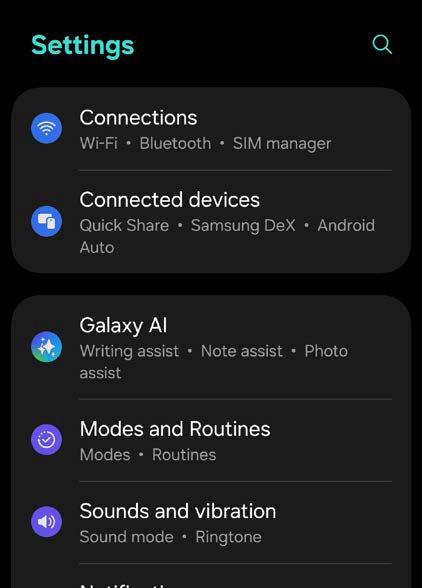
Android — Settings: Open the Connections menu.
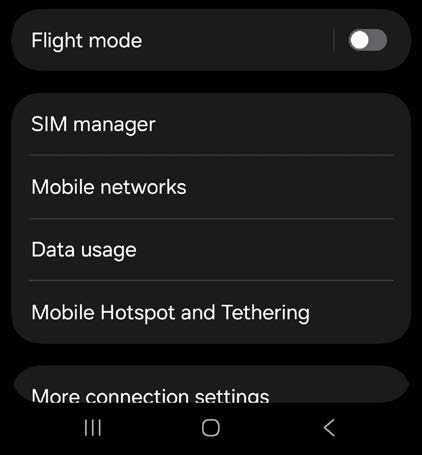
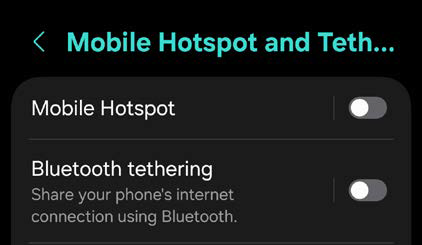
Android — Mobile Hotspot: Select Mobile Hotspot and Tethering.
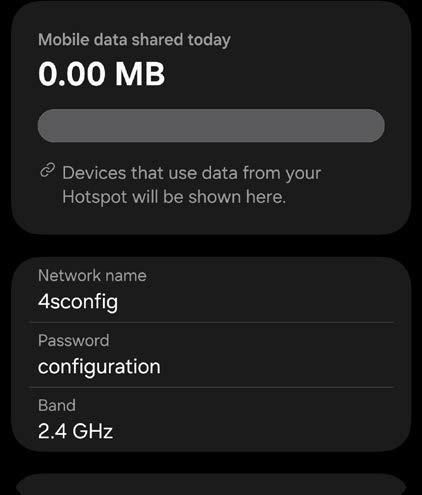
Android — Hotspot menu: Verify the hotspot settings before turning it on.
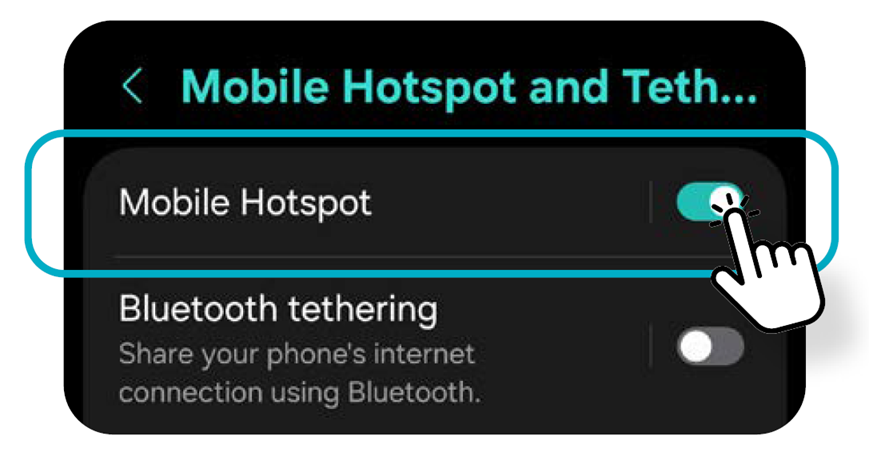
Android — Hotspot active: Turn on Mobile Hotspot.
Connection confirmation
The connection can take 1 to 2 minutes. On the control panel display, the Wi-Fi icon will blink and then become steady. The cloud icon will also blink and then become steady. The panel is connected when both icons stop blinking.
Option B — iPhone
- Open Settings on your iPhone.
- Tap General.
- Tap About.
- Tap Name and change the iPhone name to 4sconfig.
- Go back to Settings.
- Tap Personal Hotspot.
- Change the Wi-Fi password to configuration.
- Enable Maximize Compatibility.
- Enable Allow Others to Join.
- Restart the NOWA 4S / 4Se control panel.
- Wait for the panel to connect to the temporary Wi-Fi network.
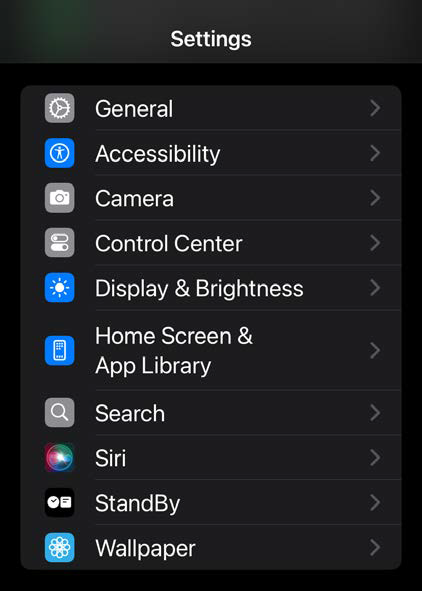
iPhone — Settings: Open the iPhone Settings menu.
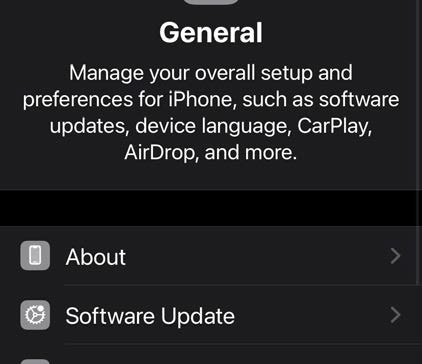
iPhone — General: Open General, then About.
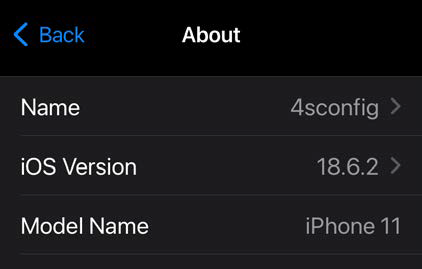
iPhone — Name: Change the device name to 4sconfig.
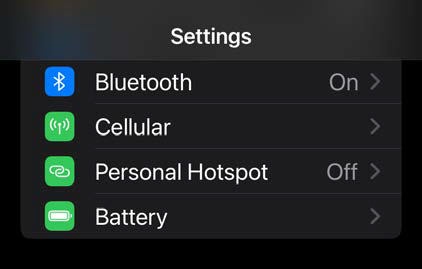
iPhone — Personal Hotspot: Open the Personal Hotspot menu.
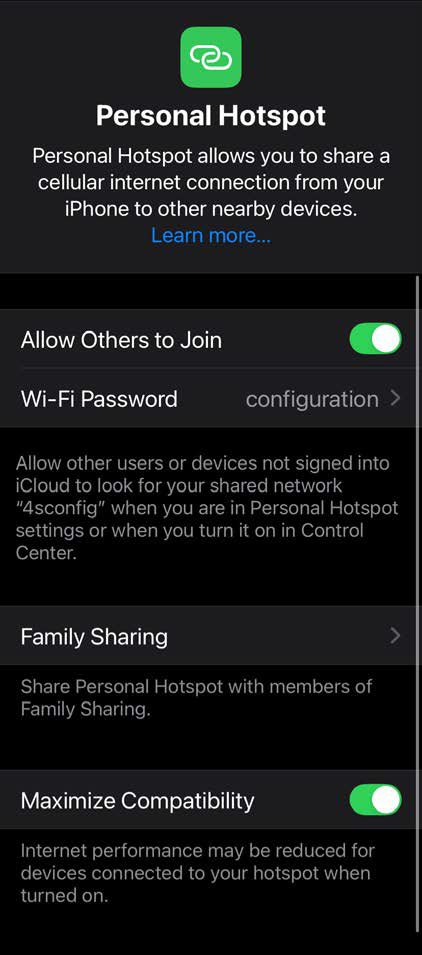
iPhone — Hotspot active: Set the Wi-Fi password to configuration, enable Allow Others to Join, and enable Maximize Compatibility.
Connection confirmation
The connection can take 1 to 2 minutes. The panel is connected when the Wi-Fi and cloud icons are steady and have stopped blinking.
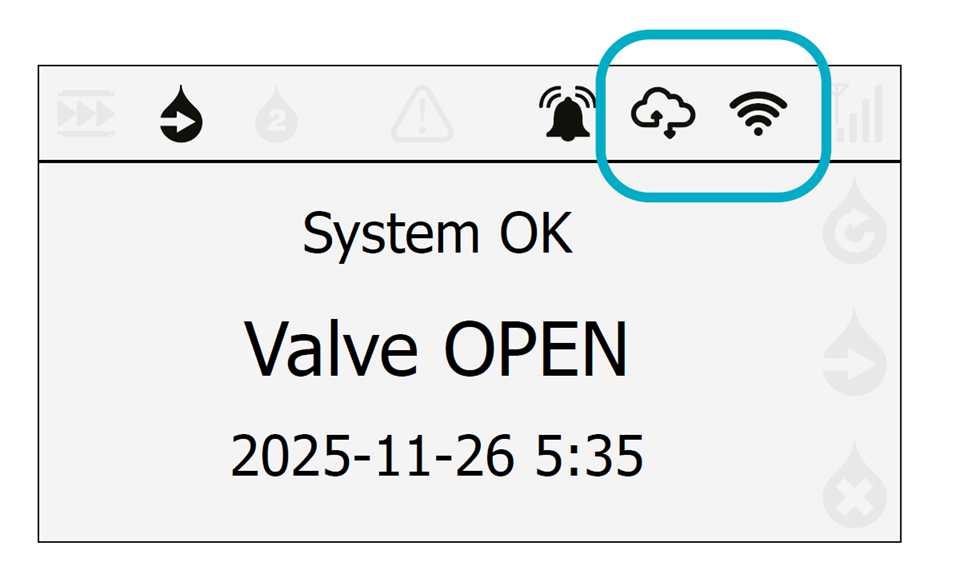
Control panel display: The Wi-Fi and cloud icons confirm the Internet connection status.
Configure the home Wi-Fi network
Once the panel is connected to the Internet, either by LTE or by the temporary Wi-Fi hotspot, configure the customer’s home Wi-Fi network in the NOWA PRESENCE app.
- Open the NOWA PRESENCE app.
- Select the system from the home screen.
- On the system dashboard, tap the blue circle with the three dots at the top right.
- Select Settings.
- Scroll down to the Network settings section.
- Tap Scan Wi-Fi.
- Select the home Wi-Fi network.
- Enter the Wi-Fi password.
- Tap Save and update.
- Wait for the NOWA 4S / 4Se control panel to connect to the Wi-Fi network.
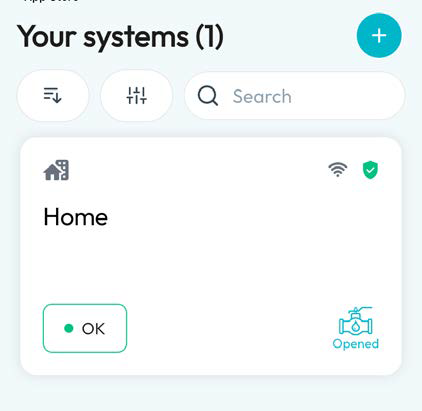
NOWA PRESENCE: Select the system from the home screen.
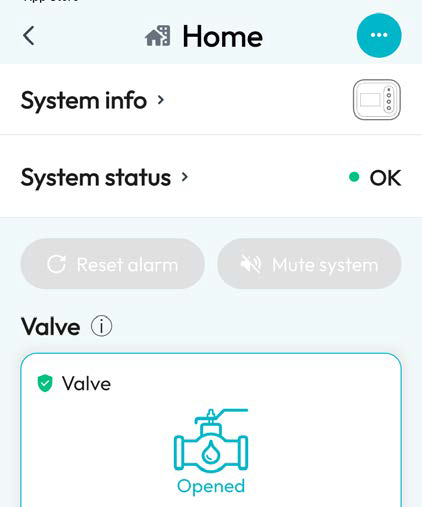
Dashboard: Tap the blue circle with the three dots at the top right.
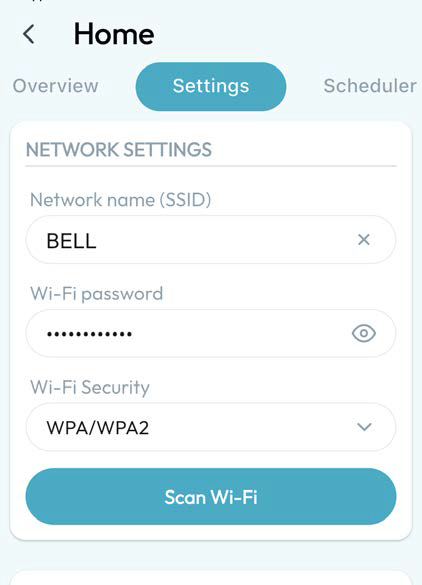
Network settings: Tap Scan Wi-Fi.
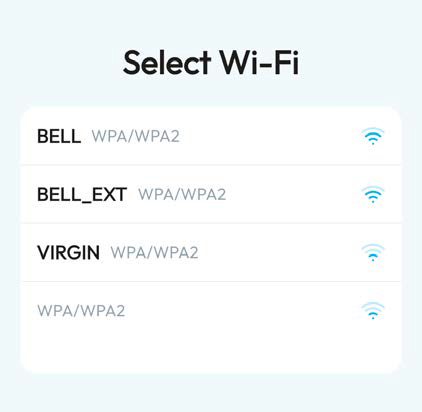
Select Wi-Fi: Choose the customer’s home Wi-Fi network.
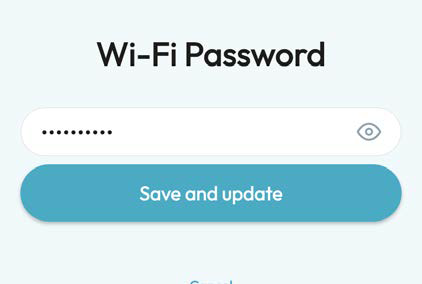
Wi-Fi password: Enter the password and tap Save and update.
Connection confirmation
- The Wi-Fi icon blinks, then becomes steady.
- The cloud icon blinks, then becomes steady.
- The panel is connected when both icons stop blinking.
Verify the connection
To confirm that the panel is properly connected to the customer’s Wi-Fi network:
- Turn off the temporary Wi-Fi hotspot created on the smartphone.
- Restart the NOWA 4S / 4Se control panel.
- Wait 1 to 2 minutes.
- Check the control panel display.
The panel is connected when:
- The Wi-Fi icon is steady.
- The cloud icon is steady.
- Both icons have stopped blinking.
Troubleshooting
The panel does not connect to the temporary hotspot
Verify the following:
- The hotspot name is exactly 4sconfig.
- The password is exactly configuration.
- The hotspot is turned on.
- Mobile data is enabled on the smartphone.
- The smartphone has a strong cellular signal.
- The hotspot is configured on the 2.4 GHz band, if the option is available.
- For iPhone, Maximize Compatibility is enabled.
- The NOWA 4S / 4Se control panel was restarted after activating the hotspot.
The panel does not connect to the home Wi-Fi
Verify the following:
- The Wi-Fi password was entered correctly.
- The Wi-Fi network is 2.4 GHz.
- The Wi-Fi signal is strong where the panel is installed.
- The router is connected to the Internet.
- The temporary hotspot has been disabled after the home Wi-Fi was saved.
- The panel was restarted after saving the new Wi-Fi settings.
Need assistance?
If the connection cannot be completed after verifying the steps above, contact NOWA Technical Support.
Email: support@nowa4S.com
Phone: 1-877-287-7777
Online support: www.nowasupport.com
Was this article helpful?
That’s Great!
Thank you for your feedback
Sorry! We couldn't be helpful
Thank you for your feedback
Feedback sent
We appreciate your effort and will try to fix the article